OpenParty on your Fire TV
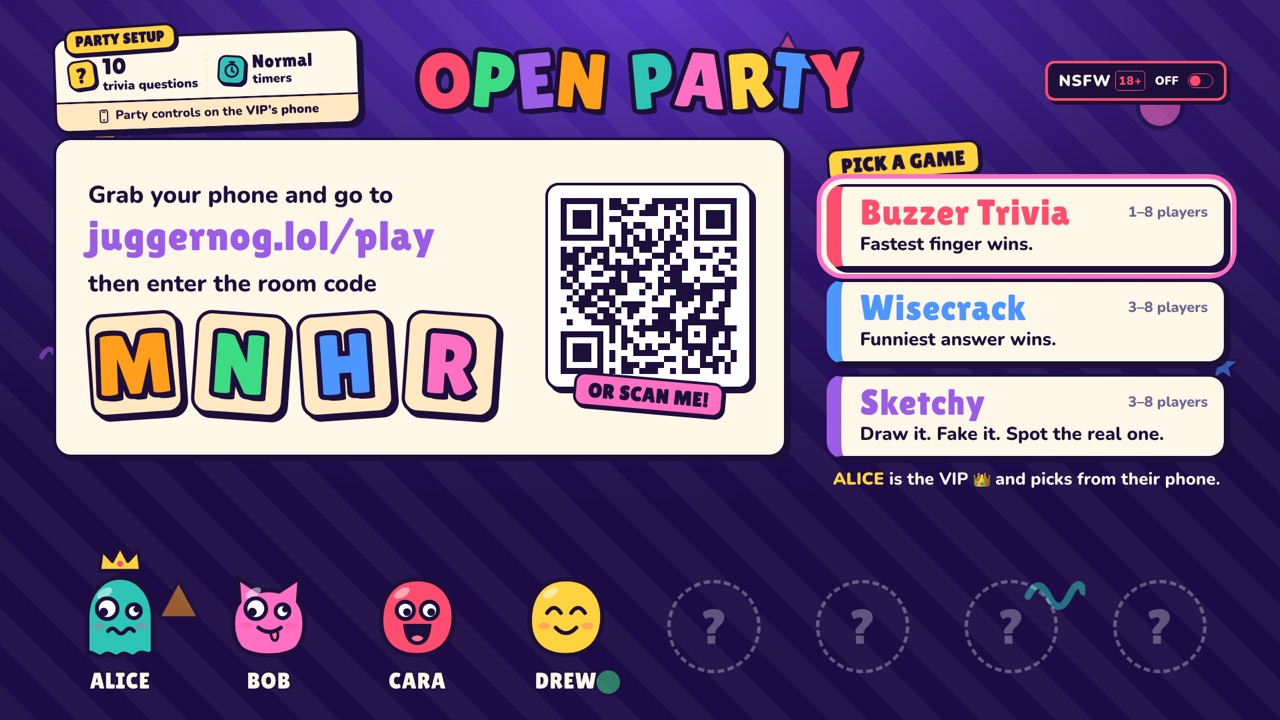
Our Fire TV app puts the party one click from the couch: no browser, no typing. Sign the TV in once with your phone and it stays ready for game night.
Rather not install anything? Open juggernog.lol/tv in your TV’s web browser (Silk on Fire TV) and it works just the same.
Install it in five steps
About three minutes, with your Fire TV remote and phone.
First, check your Fire TV can install apps
On the Fire TV, go to Settings → My Fire TV → About. If you see Fire OS, you’re all set. If you don’t, your device runs Amazon’s newer Vega OS (the Fire TV Stick 4K Select, for example), which only installs apps from Amazon’s Appstore. Skip the app and open juggernog.lol/tv in a web browser, or plug a laptop into the TV instead.
- 1
- 2
Install “Downloader” on the Fire TV
From the Fire TV home screen, search for Downloader (the orange icon by AFTVnews) and install it. It’s free.
- 3
Let Downloader install apps
Go to Settings → My Fire TV → Developer Options → Install unknown apps and turn Downloader on.
No Developer Options? Go to Settings → My Fire TV → About and press OK on your device’s name seven times.
- 4
Download OpenParty
Open Downloader, type your address from step 1 (juggernog.lol/dl/ and your code) and choose Install.
- 5
Open it and sign in
Launch OpenParty. It shows a code: scan it with your phone (or go to juggernog.lol/link) and your TV is signed in for a year. Press OK to start the party!